


 File Shredder


Hur gör du säkert radera filer på Mac completely and forever? Is there a way to permanently remove all these files to secure my data? Thanks!

 Of Course! Let me tell you how to securely delete files on Mac as follow. Keep Reading!
No one likes to have personal information seen and accessed by anyone else. This certainly invades our privacy and security. However, our Mac has all our information stored on the hard disk and can be prone to security breaches in case we hand it over or sell it to others. Another side, the accumulation of a large number of files will cause the remaining space to continue to decrease, causing the Mac to run slowly. So you must delete the files to free up storage space.
So it is better to permanently and säkert radera filer på Mac if you are planning to sell it to someone else. And before you put it up for sale, be sure to completely remove all the traces of files inside the device.
Hur tar man bort filer säkert på Mac?
- On the keyboard, hold down the ‘
Control’ key. - Click on the ‘Trash’ icon.
- Tryck "
Command” on OS X Yosemite/higher. You can press “Control"Eller"Option" istället. - Click the “Secure Empty Trash”.
Innehåll: Part 1. How Do You Securely Delete Files on Mac?Part 2. What Is The Most Secure Way to Delete Files?Del 3. Slutsats
Part 1. How Do You Securely Delete Files on Mac?
When you delete files Mac and other iOS devices such as iPhone, the information stays hidden inside the hard drive until the data is overwritten. Meaning, they are not completely gone. These data can even be taken against you in case it can be recovered. This means, your personal information is susceptible to identity theft.

Så är det ett sätt att säkert radera filer på Mac forever? Don’t worry; we’ll give you more options on how to säkert radera filer på Mac that no one can still recover, ever!
1. Secure Empty Trash on Mac
This is the basic way to delete the files from Mac. You can do this on a regular or weekly basis to also speed-up Mac’s performance.
- On the keyboard, hold down the ‘
Control’ key. - Click on the ‘Trash’ icon.
- Tryck "
Command” on OS X Yosemite/higher. You can press “Control"Eller"Option" istället. - Klicka på "Säkert tomt papperskorgen".
Detta garanterar dock inte att filerna är borta för alltid. Säkert kommer det att finnas spår av koderna som fortfarande kan användas för att hämta informationen.
Securely Delete Files on El Capitan and Higher:
För det senaste Mac OS verkade det som att papperskorgen togs bort eller ännu hellre "doldes". Följ dessa steg om hur du startar papperskorgen och tar bort viktiga filer.
- Open Launch Pad
- Öppna Annan mapp
- Hitta och klicka på Terminal
- Skriv in
srm –v(add space after the v, srm means ‘secure remove’) - Dra och släpp filen/filerna du vill ta bort
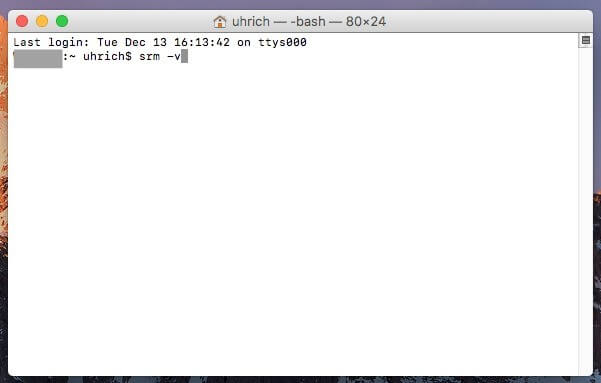
Kom ihåg det "fragmentering" means that the files will be overwritten using random code so that if in case it is recovered then the original files will not be decoded.
2. Securely Delete Files on Mac with Terminal
In earlier macOS versions, the srm command allowed secure file deletion in Terminal. With macOS Sierra, Apple removed this feature, but you can still securely delete files using the rm kommando.
First, configure some settings:
- Open System Settings från Apple-menyn.
- Navigate to Keyboard inställningar.
- Under Keyboard Shortcuts, Gå till Tjänsteroch sedan Filer och mappar.
- Möjliggöra New Terminal at Folder och New Terminal Tab at Folder.
Next, locate the file in Finder:
- Högerklicka på mappen containing the file.
- Välja Services > New Terminal at Folder.
In the Terminal window:
- Typ
rm -P filename.ext, byter utfilename.extwith your file’s name and extension. - Klicka Retur för att utföra kommandot.
3. Securely Delete Files via Disk Image
Disk images (.dmg) are versatile for packing and sharing files on macOS. You can create and encrypt them using Disk Utility, turning them into secure vaults for sensitive data. To securely delete files using a disk image:
- Öppna Disk Utility.
- Go to File > New Image > Blank Image.
- Name your image, choose size, and select 128-bit AES encryption. Set a password.
- Copy files to the encrypted disk image.
- Eject the disk image to lock it.
- Move the .dmg file to Trash and empty it to securely delete.
4. Securely Delete Files Using TRIM
Many modern Macs are equipped with SSDs (Solid State Drives) rather than traditional HDDs (Hard Disk Drives). Secure file deletion is more challenging on SSDs, but achievable with TRIM.
TRIM is a tool that automatically clears data in designated "not in use" spaces, allowing new data to overwrite these spaces. While HDDs lack this feature, you can enable TRIM on SSDs using the trimforce command in Terminal.
Steps to Enable TRIM:
- Öppna Terminal.
- Typ:
sudo trimforce enable - Confirm the prompts by typing
yoch trycka påEnter.
Obs: Back up your files with Time Machine before proceeding, as Apple advises caution when using TRIM.
Part 2. What Is The Most Secure Way to Delete Files?
We will give you the most secure and effective method to securely delete files on Mac without the fear of retrieving the files again. All you need is a program that will do the task for you in no time -- PowerMyMac.
This tool will permanently delete all the files without any traces. It has many functions which will help you get rid of vulnerable files, clean up log files, speed up the performance, and lets you do more things.
 Få en gratis provperiod nu!
- Ladda ner och installera PowerMyMac på din Mac och starta den sedan.
- Hitta och välj Shredder on the left side. And then click the 'Lägg till eller dra filer'.
- Choose Path and add the desired files to delete.
- Klicka på STRIMLA button, wait until the process is complete.
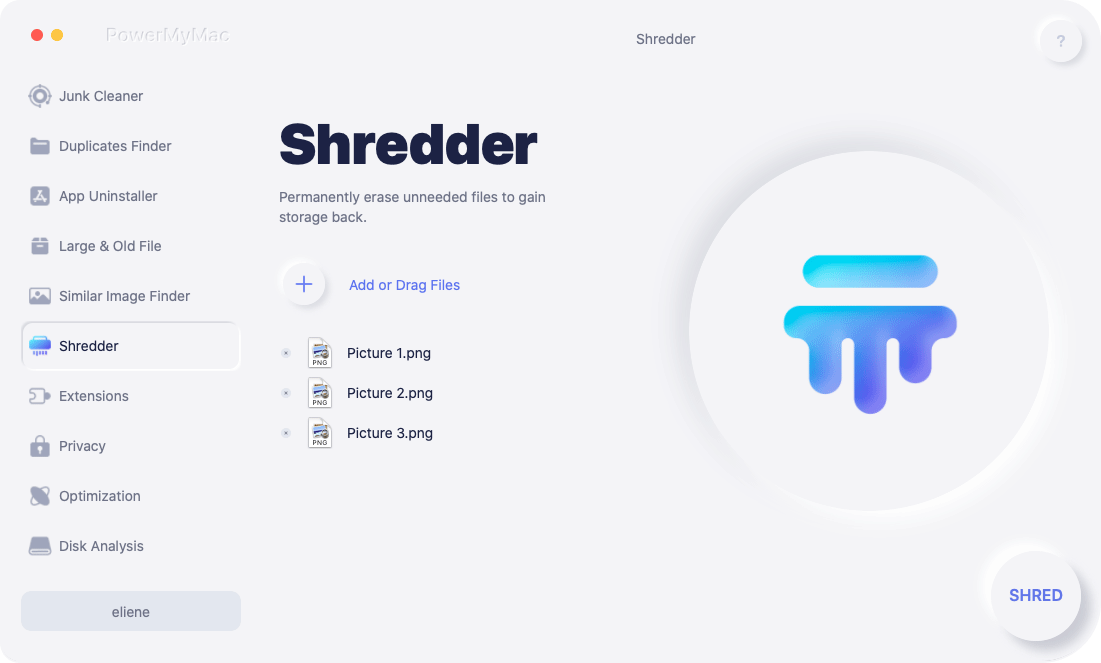
Du kan göra detta steg när du har sparat och använt konfidentiell information som behövde tas bort direkt efteråt.
Del 3. Slutsats
In today’s generation wherein gadgets and information are very handy, it is very important to keep your personal files confidential and secure. But of course, we cannot do that because the system does not allow us to do it unless the codes are overwritten. We can manually remove the files itself from any macOS yet they are still recoverable.
PowerMyMac is a reliable program with different functionalities. You can use it to securely delete files on Mac in no time and without any stress!



Dailuja2018-11-12 05:17:20
I tried erasing my MacBook Air's HD, following the steps of "Securely Delete Files on El Capitan and Higher" in your article. But I didn't see any options for security. Why?
iMyMac2018-11-12 09:35:19
Apple's removed the secure erase functionality on SSD-based systems like your MacBook starting with the version of Disk Utility included with El Capitan onward, so you're not missing anything - the option isn't there.
lindra2019-03-06 16:34:45
This's great. Thanks for posting the solutions after missing secure delete feature from Apple.
iMyMac2019-03-06 18:05:14
Tack för ditt stöd!
Linavia2019-05-08 12:46:27
I typed the srm -v on terminal but couldn't delete the files from the folder in the Trash, due to that computers says they are in use.
iMyMac2019-05-08 14:07:15
Hi, to solve this problem, please try to type this: srm -rv /Users/this_will_be_your_username_here/.Trash/*